
 Image to image AI · restyle
Generated image will be displayed here
Motixo image workflow
Image to Image AI on Motixo
Guide generation with a reference image — keep composition cues while exploring new styles, materials, and moods.
- Start with a clear brief
- Built for real production use
- Explore multiple directions
How to use Image to Image AI
Step 1
Add a reference image
Upload the photo whose structure you want image to image AI to follow.
Step 2
Describe the new look
Change style, materials, or era while keeping layout cues.
Step 3
Generate variations
Explore options that honor the reference silhouette.
Image to Image AI Features
Structure-aware restyle
Preserve pose and layout while shifting aesthetic.
Material swaps
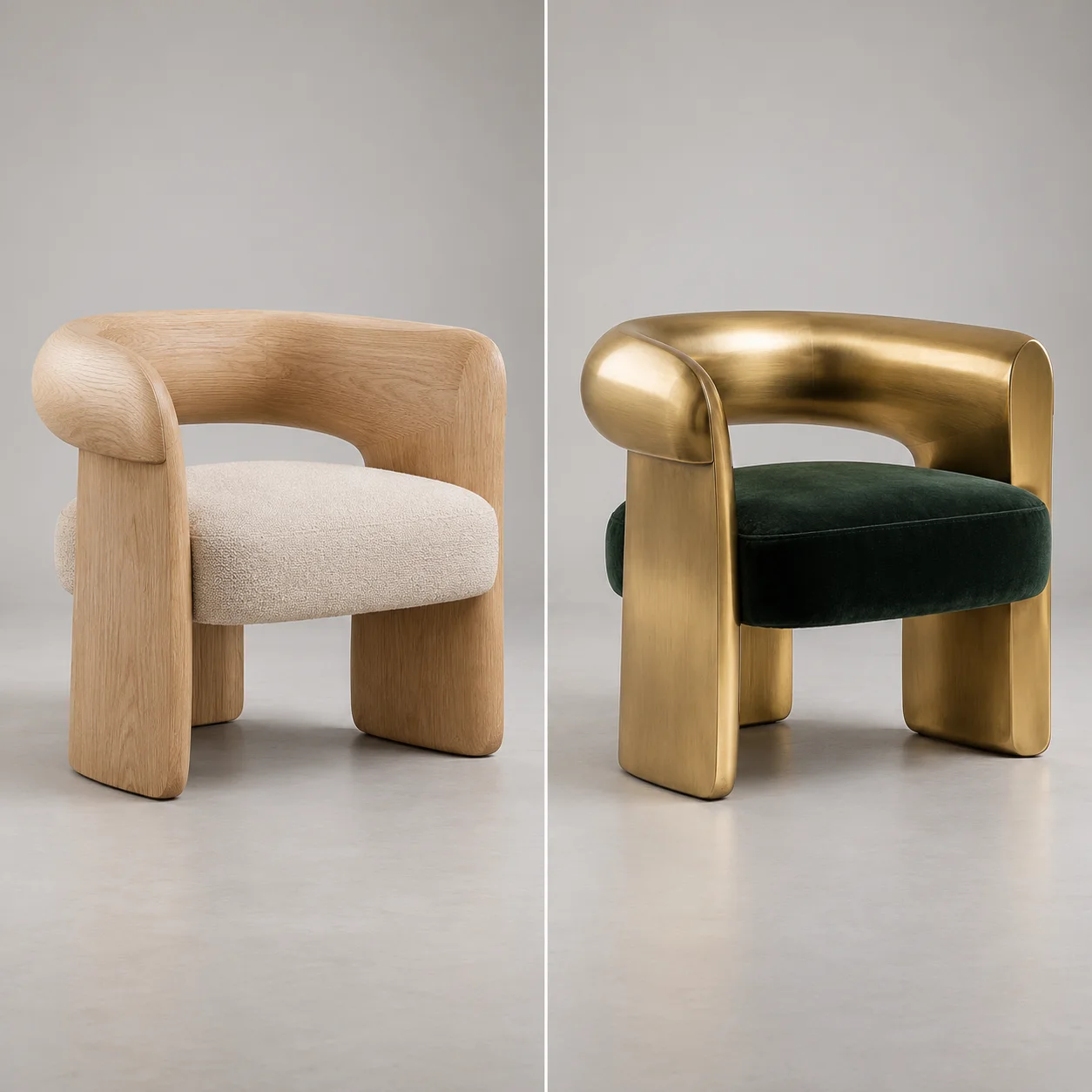
Try wood, metal, fabric, or paint finishes on the same form.
Brand look exploration
Generate campaign variants from one approved still.
Creator-friendly iteration
Tight feedback loops for art direction.
Image to Image AI Examples
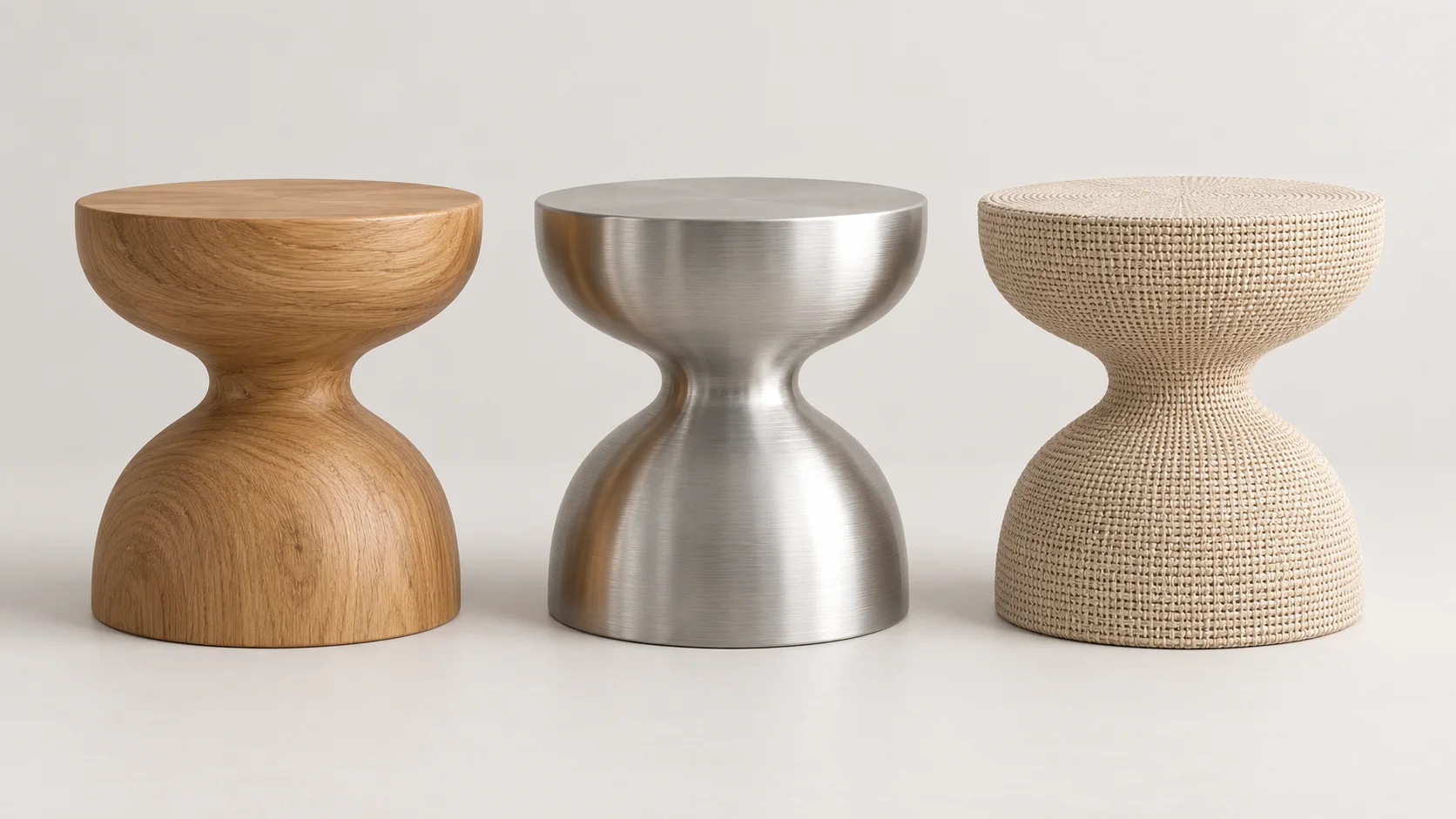
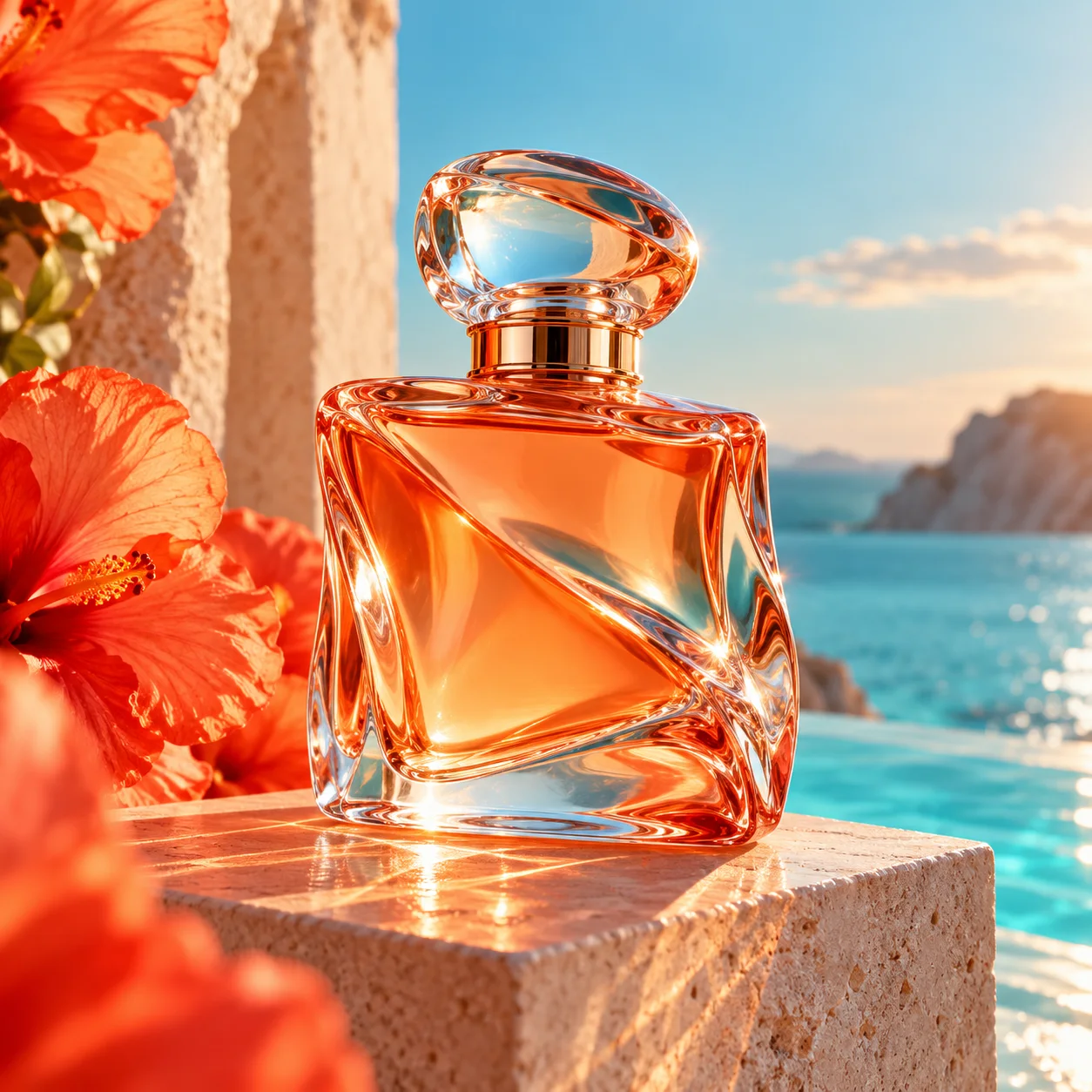
Image to Image AI FAQ
Image to image AI uses a reference photo plus a prompt so new outputs keep structural cues from the original.
Try Image to Image AI
Start with one simple brief, then tune the lighting, style, and framing until it fits your campaign.